From the Dashboard, go to Appearance > Menus
At the top of the screen, use the dropdown to select the menu you want to edit (for example, “Primary Menu” for the main header navigation, or “Footer Menu” for the footer links)
To rename a menu item: click the small arrow on the right of the item to expand it, update the Navigation Label field, then click Save Menu
To reorder items: click and drag an item up or down in the list, then click Save Menu
To add a page to the menu: tick the page under the “Pages” panel on the left, click Add to Menu, drag it into the position you want, then click Save Menu
To remove an item: expand it and click Remove, then click Save Menu
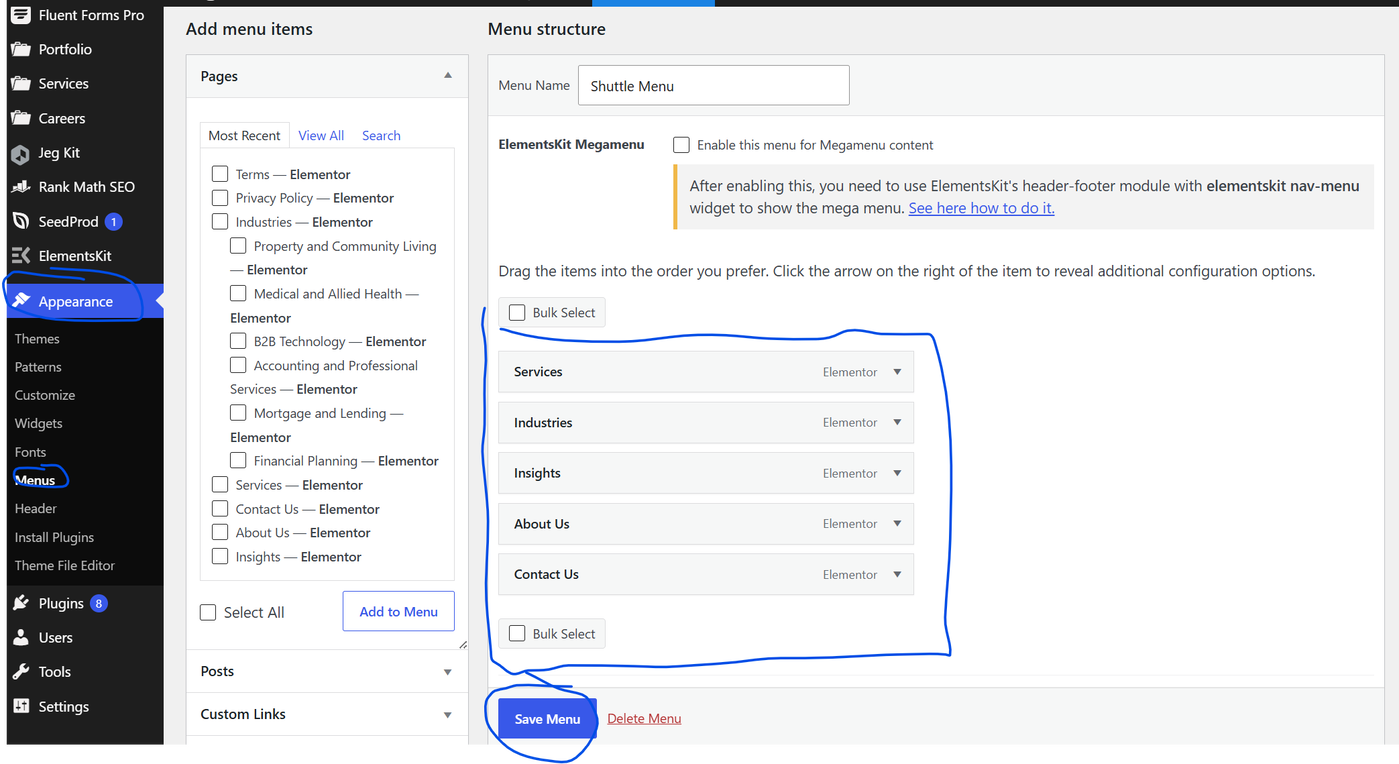
⚠️ IMPORTANT Always click Save Menu after making a change – menu edits are not saved automatically. |